ActivMan inventory
This option is meant to simplify the (partial) inventory assessment using a bar code scanner and if necessary, a barcode printer.
 Sometimes assets are moved from one location to the other. With this ActivMan inventory add-on you will obtain a direct overview of assets which have been moved or are lacking (and therefore must be adjusted).
Prior to their actual registration, objects need to be put in the ActivMan database and physically labelled with a corresponding barcode sticker.
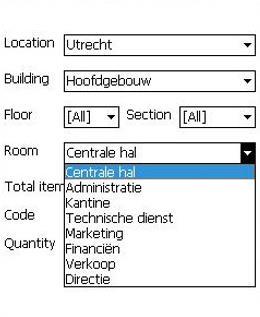
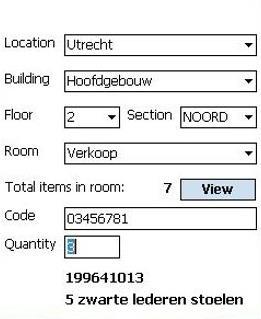
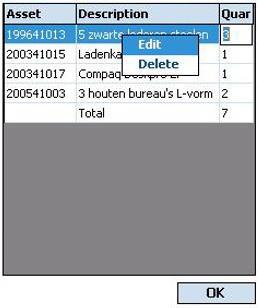
This ActivMan inventory add-on is actually a combination of two applications. The first being an extended function of ActivMan, which allows you to send data to and from the barcode scanner en check the read-in data before they are being processed by ActivMan. The other application runs on the barcode scanner, executing the actual object registration. After scanning the objects per location, connect the barcode scanner to your PC en transmit the date for checking and adjustment if necessary.
The ActivMan inventory add-on saves you a maximum of time with minimal effort.
Example:
During its annual inventory the financial department of a company first made an inventory of the objects in every office room in the building. This was easy, as every room has its own barcode label (safely stuck in every door frame) and every object has its unique barcode label too. After processing the data in ActivMan it turned out that three workstations, seven desks, three office chairs and a heavy chest of drawers had been moved to another room. One workstation was missing, but soon turned out to be sent out for repair. In total, the survey took no more than two days. Before using the ActivMan inventory add-on the total procedure took at least a week. And since ActivMan stores the entire object history, every adjustment or relocation of any object can be retrieved many years after.